
Update your profile
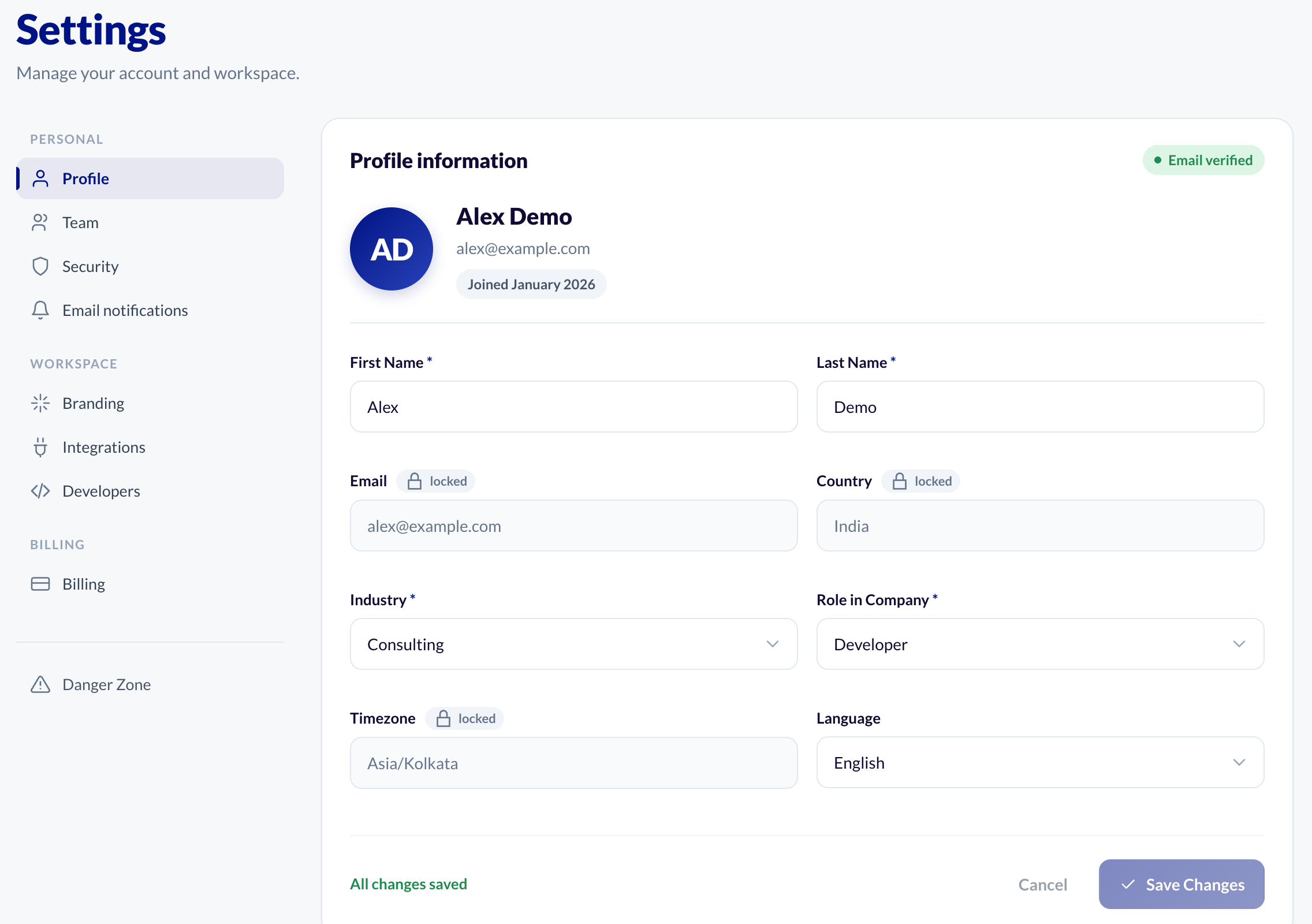
- In the sidebar, open Settings. It opens on Profile.
- Change your First Name, Last Name, Industry or Role in Company.
- Click Save Changes.
First name, last name, industry and role are required, so Save Changes stays greyed out until they are filled in.
Your Email, Country and Timezone are locked and cannot be changed here. If you need to change one of them, send us a message.
Change your password
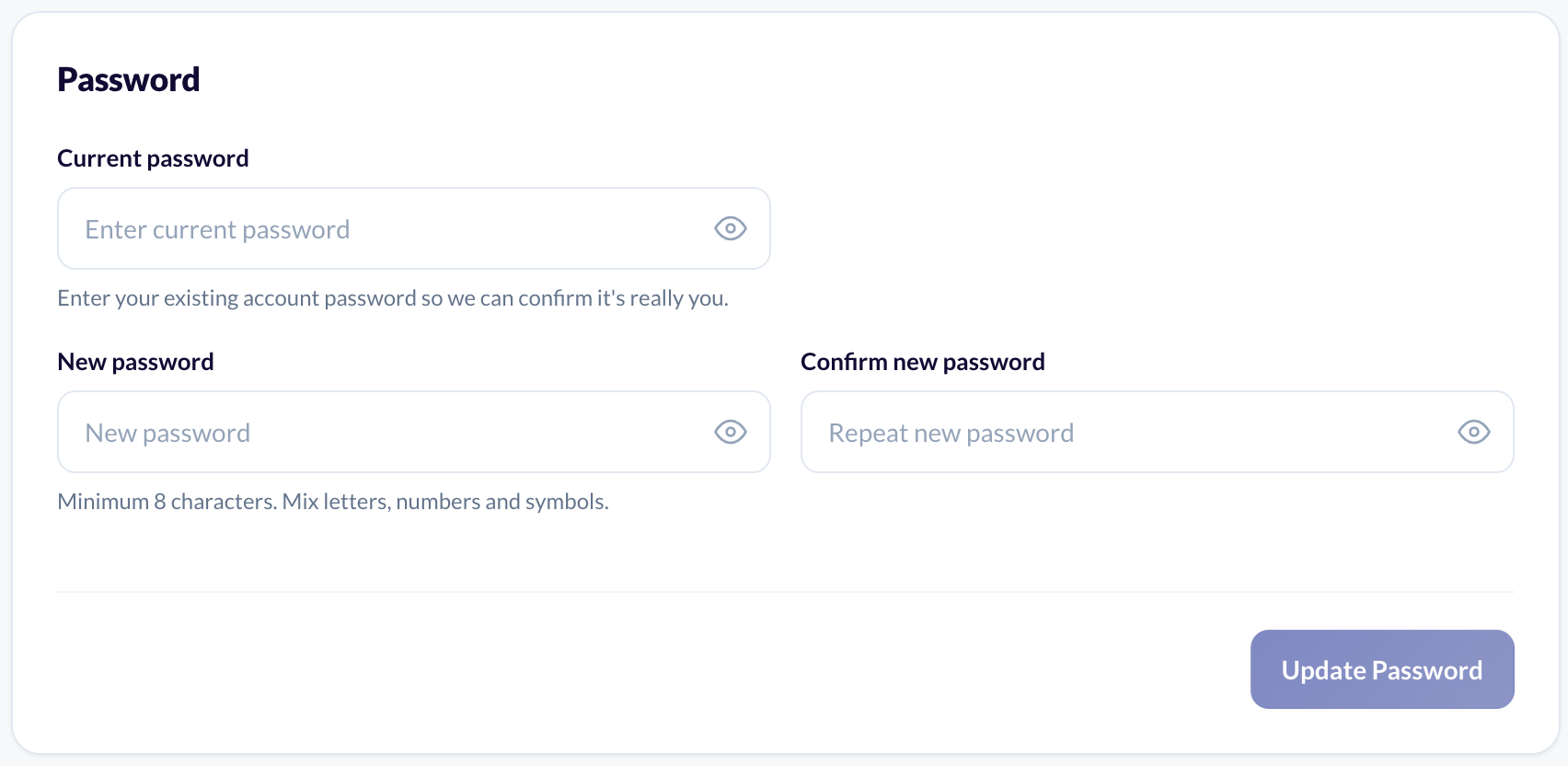
You need your current password for this. If you have forgotten it, see "Resetting a forgotten password".
- In Settings, click Security.
- Enter your Current password.
- Enter a New password and type it again under Confirm new password.
- Click Update Password.
While you are there, think about turning on two-factor authentication. See "Turning on two-factor authentication".
